Create and send a quote3–5 min12 Steps

Create and Send a Quote
from Instant Quote

In this guide, you’ll learn how to open Instant Quote, enter shipment details, review available rates, edit pricing and margin, generate the quote PDF, and send the quote directly to the customer.

For more product tutorials and workflow guidance, visit the Freightools Help Center.

Create and Send a Quote from Instant Quote

Step 01

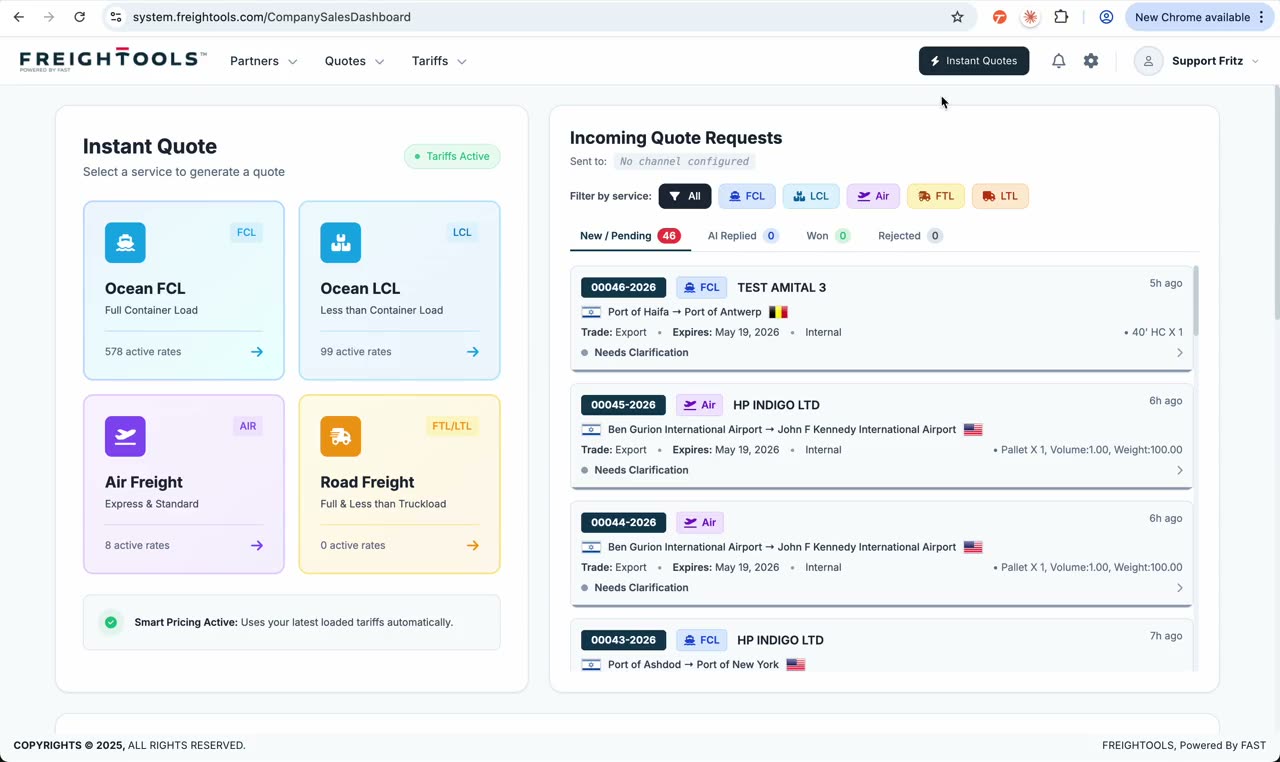
Open Instant Quote

From the company dashboard, open Instant Quote. The dashboard may show recent quotes, active buying agreements, AI tariff processing, and sales activity — but the quote flow always starts from Instant Quote.

User action
Click Instant Quote in the top navigation.
Result
The Instant Quote search form opens, ready for customer and route input.
Tip
Bookmark Instant Quote — it’s the fastest path to a new quote.
Silent clip · Opening Instant Quote from the company dashboard
Silent clip · Selecting customer, origin, and destination
Step 02

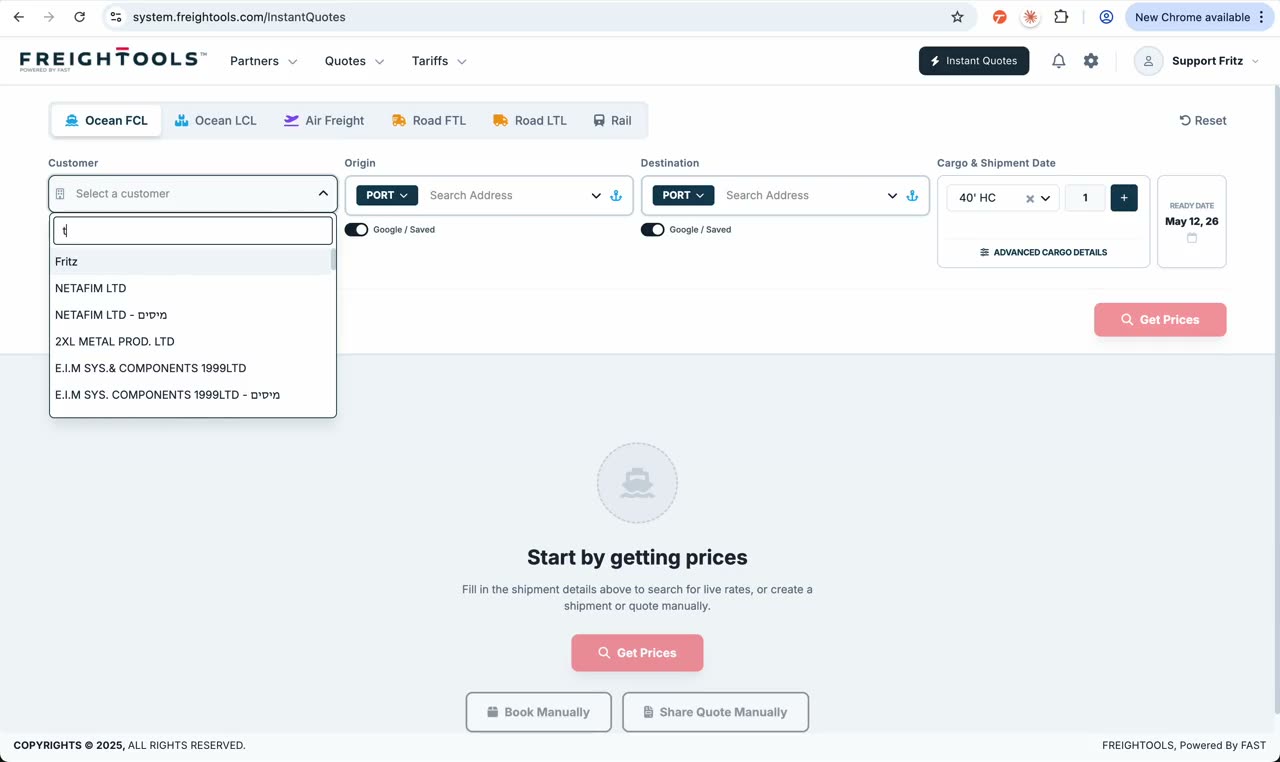
Select customer and shipment route

Choose the customer, then select the origin and destination. The origin can be a door address or a port — when starting from a door address, Freightools can help detect the relevant port automatically.

User action
Pick the customer, then enter the origin and destination.
Result
The route is locked and the form is ready for cargo details.
Tip
If you only know a door address, let Freightools resolve the nearest port for you.
Step 03

Enter cargo details

Add the shipment details based on the shipment type: weight, volume, CBM, container type, or cargo line items. Accurate cargo data drives both pricing and routing decisions downstream.

User action
Enter weight, volume / CBM, or container type for the shipment.
Result
Cargo is captured and the Search button becomes active.
Tip
Be precise on weight and volume — both feed the buying agreement match.
Silent clip · Searching rates and reviewing the available options
Step 04

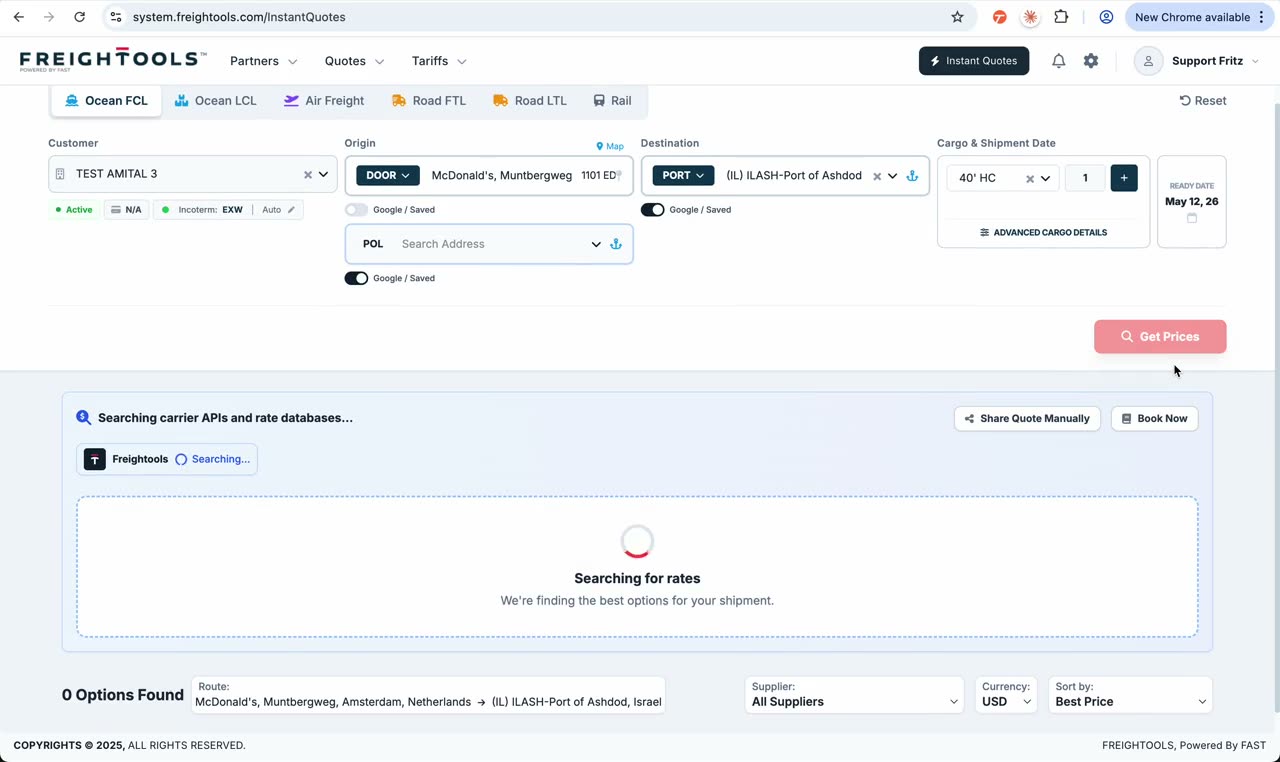
Search and review rates

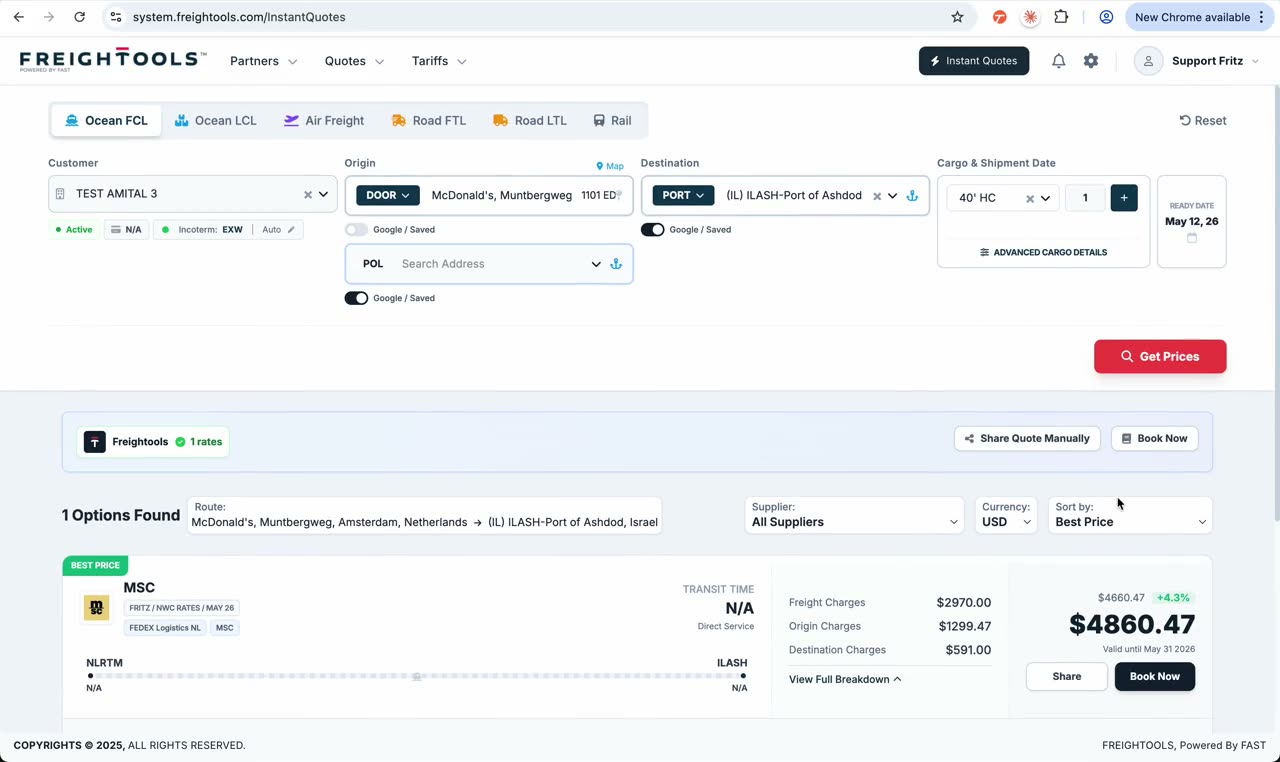
Click Search to fetch rates. Freightools checks active buying agreements and returns the available options. A complete result may include ocean freight, road freight, and local charges depending on the route and agreements.

User action
Click Search and review the returned rates.
Result
Available rates appear with ocean, road, and local charges where applicable.
Tip
If nothing shows up, verify the route and that supplier tariffs are loaded for this lane.
Step 05

Share the selected rate

Click Share to continue from the search result into the quote / sales proposal workflow. Before sending, you can still review and edit everything — pricing, routing, contact, and the customer-facing PDF.

User action
Choose the best rate and click Share.
Result
The selection becomes a draft quote on the Quote page.
Silent clip · Sharing the selected rate into the quote workflow
Step 06

Review routing and cargo

Verify the routing and cargo details on the quote page before sending. Anything entered in Instant Quote can still be edited here.

User action
Open the routing and cargo blocks and confirm the values.
Result
Routing and cargo are accurate on the draft quote.
Step 07

Add customer contact and reference

Scroll down on the quote page and add the customer contact, customer reference, and any other shipment-specific information the customer will need on the proposal.

User action
Add the customer contact and a customer reference.
Result
The proposal is personalized and easy for the customer to identify.
Tip
A clean customer reference dramatically reduces back-and-forth emails.
Silent clip · Editing pricing and margin before sending
Step 08

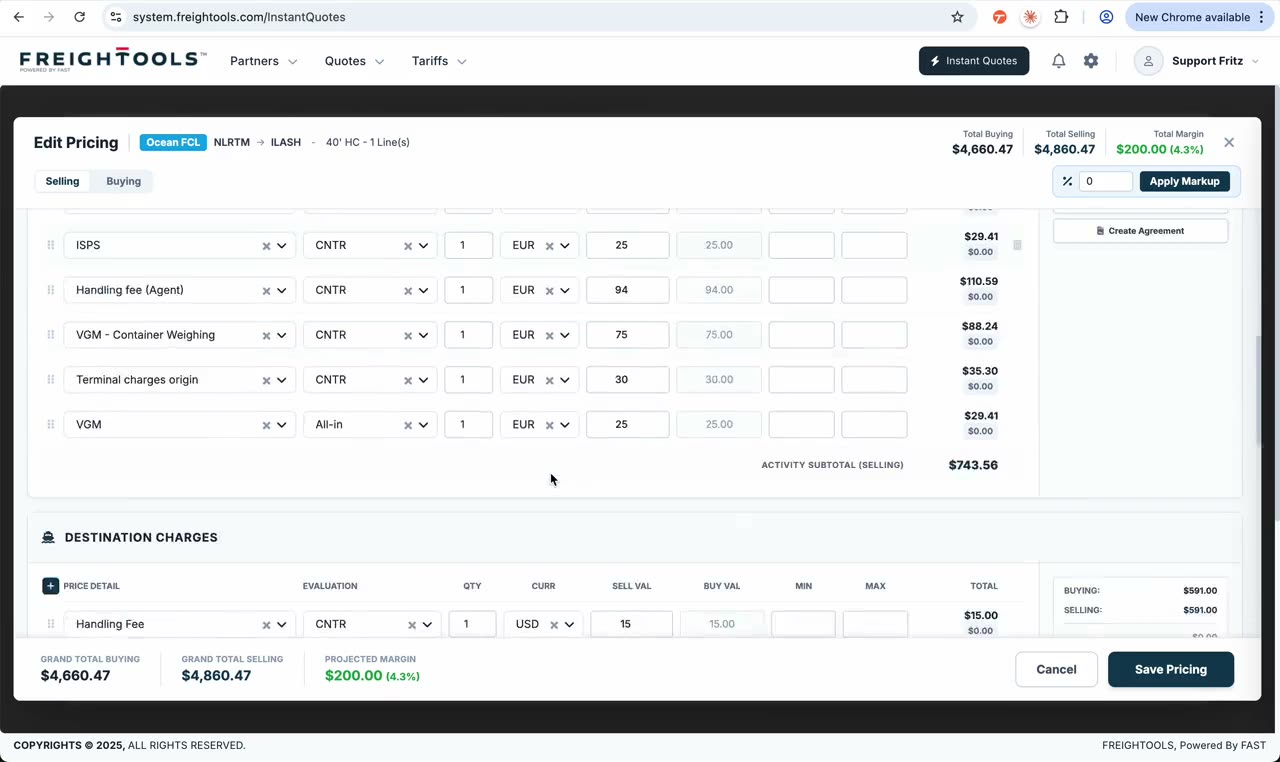
Edit pricing and margin

Open the pricing editor. Both buying and selling prices can be reviewed and edited line by line. Use this step to adjust margin before sending. After changing the selling price or margin, click Save Pricing.

User action
Open the pricing editor, adjust selling price or margin, then Save Pricing.
Result
Margin is updated and locked into the draft proposal.
Tip
You can adjust margin per-line or at the proposal level — pick whichever is faster.
Step 09

Add information and preview the printout

Add any additional information needed on the proposal. Preview the printout template to verify the customer-facing PDF before sending.

User action
Click Preview to open the customer-facing PDF.
Result
The exact PDF the customer will receive opens for review.
Tip
Catch typos and pricing surprises here, before the email goes out.
Silent clip · Previewing the PDF and sending the email to the customer
Step 10

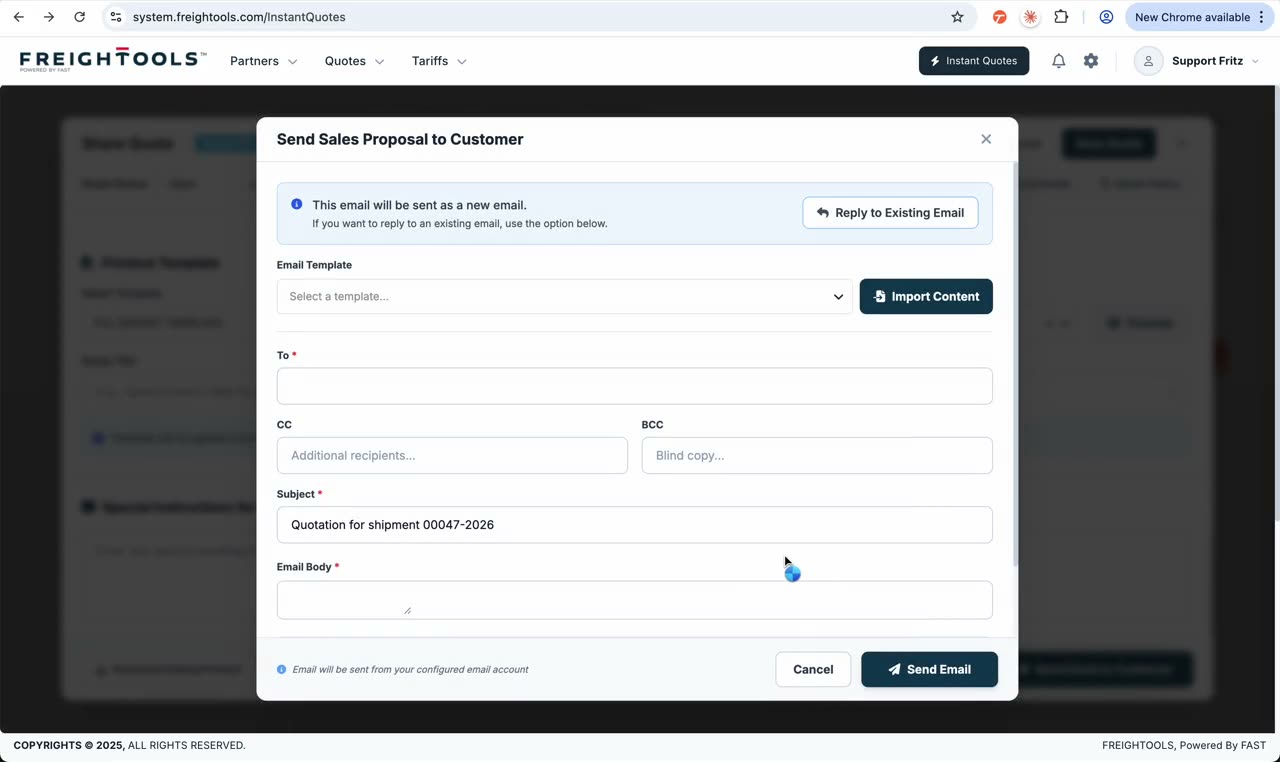
Send email to customer

Click Send Email to Customer. Freightools generates the quote PDF and opens the email composer. If your mailbox is connected, the email is sent from your own address — otherwise it is sent from the system email. The quote PDF is attached automatically. You can add more files and write the customer email directly from the composer.

User action
Click Send Email to Customer, then complete the email composer.
Result
The quote PDF is generated, attached, and the email is sent to the customer.
Tip
Connect your mailbox in settings so the email is sent from your own address.
Step 11

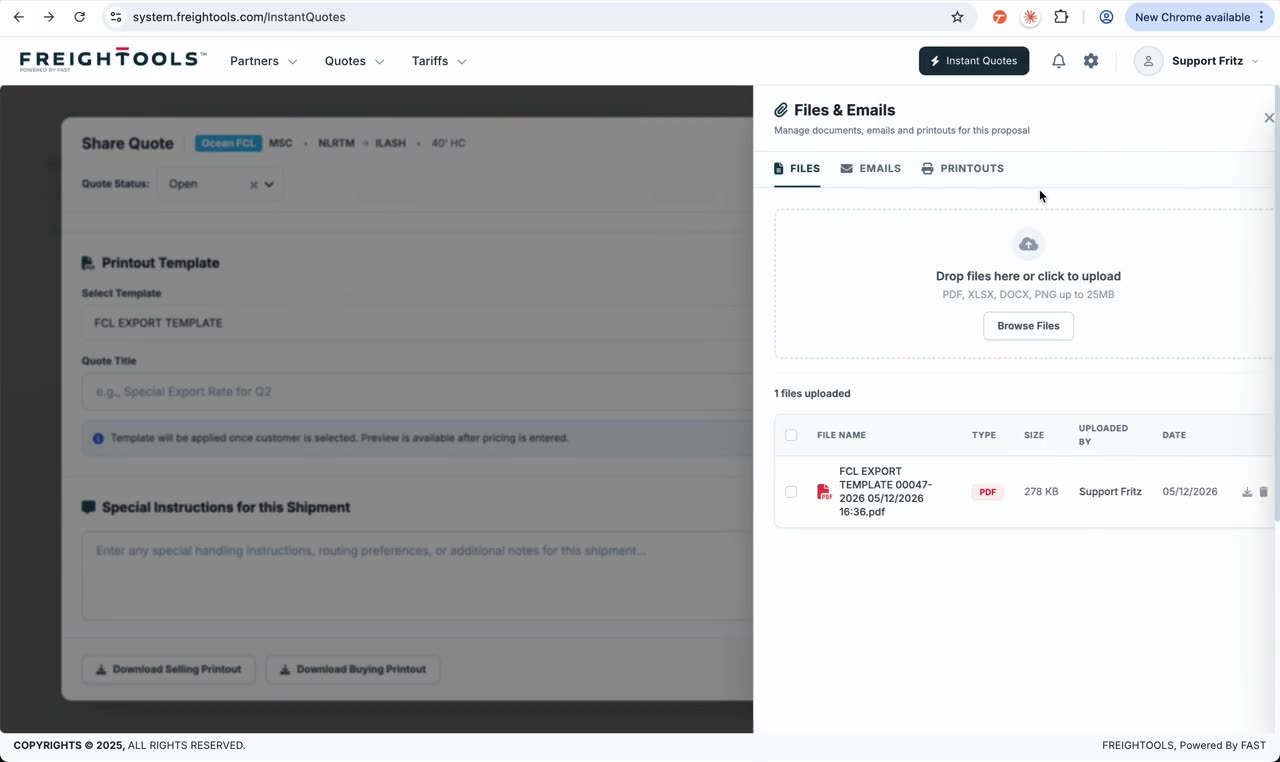
View or download the PDF

Open Files and Emails from the quote page to view or download the generated PDF, and to see the full email history attached to the quote.

User action
Open Files and Emails on the quote page.
Result
The PDF and the full email history are listed and downloadable.
Silent clip · Opening Files and Emails to download the PDF
Silent clip · Reviewing possible sailings on an ocean quote
Step 12

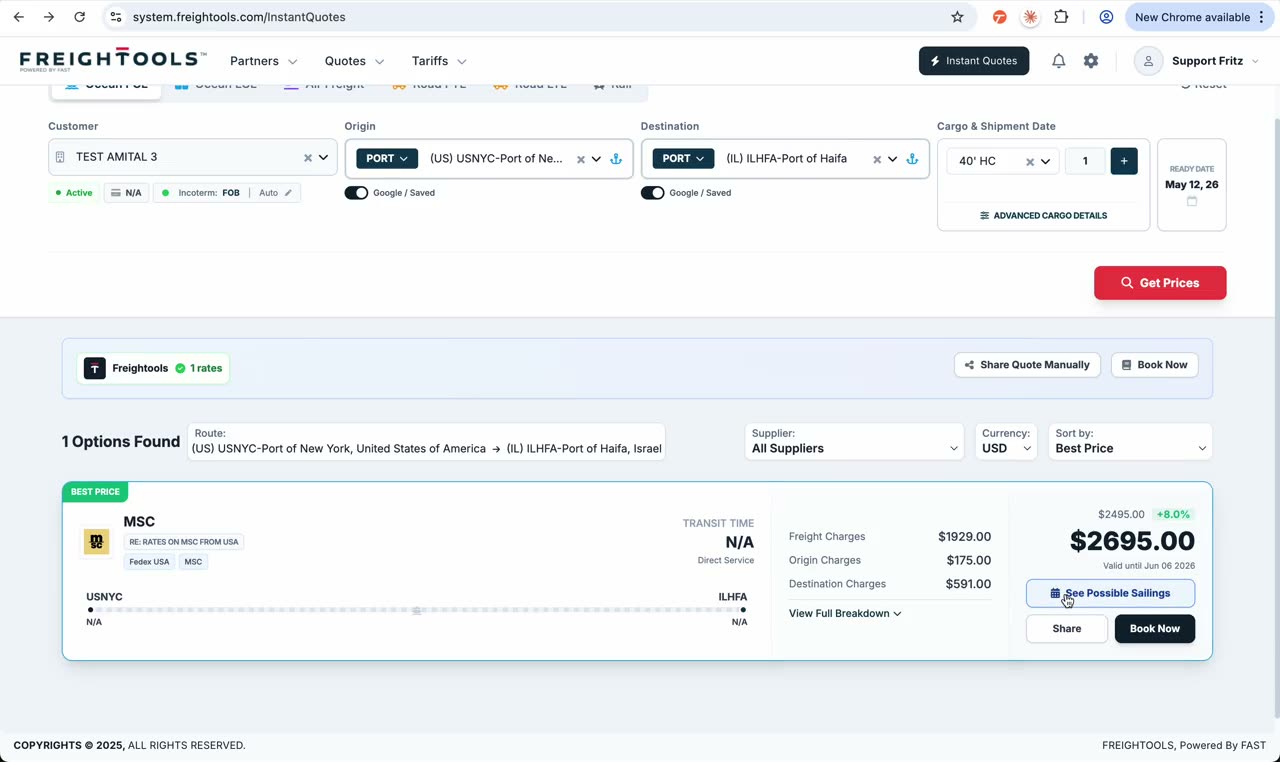
Optional: review possible sailings

For ocean quotes, when possible sailings are available, click See Possible Sailings. Review available vessels and departure dates, select the relevant sailing, then continue to Share and complete the quote workflow.

User action
Click See Possible Sailings, pick a vessel/departure, and continue.
Result
The selected sailing is attached to the quote and the workflow continues to Share.
Tip
Only ocean lanes with active schedules show this button — that’s expected.

Before sending the quote

Final review

  • Customer selected

  • Origin and destination verified

  • Cargo details verified

  • Rate selected

  • Routing reviewed

  • Margin checked

  • Customer contact added

  • PDF preview reviewed

  • Email body completed

  • Attachments checked

Common questions

Quick answers to the most common quoting questions.

  • No rate was found

    Check that the route, cargo details, and active buying agreements are valid. Try another route, or verify that the relevant supplier rates are loaded.

  • I need to change the margin

    Open the pricing editor, update the selling values or margin, and click Save Pricing.

  • I want to send from my own email

    Connect your mailbox in email settings. Once connected, Freightools sends the quote from your own mailbox instead of the system email.

  • I only need the PDF

    Open Files and Emails from the quote page and download the generated PDF directly.

  • I want to choose a sailing

    When available, click See Possible Sailings, select the preferred vessel/departure, and continue to Share.

Ready to create your first quote?

Use this guide as your first workflow. Once your team is comfortable with Instant Quote, you can continue with settings, spot rates, AI tariff loading, and quote templates.