AI automation settings8–10 min26 Steps

AI Automation Settings
Tari & Miles

Freightools AI Automation Settings control how incoming emails and files are classified, processed by AI, mapped into buying agreements, and used to generate quote replies. Tari handles tariff loading. Miles handles customer quote requests.

For more product tutorials and workflow guidance, visit the Freightools Help Center.

AI Automation Settings Tari & Miles

Step 01

Open AI Automation Settings

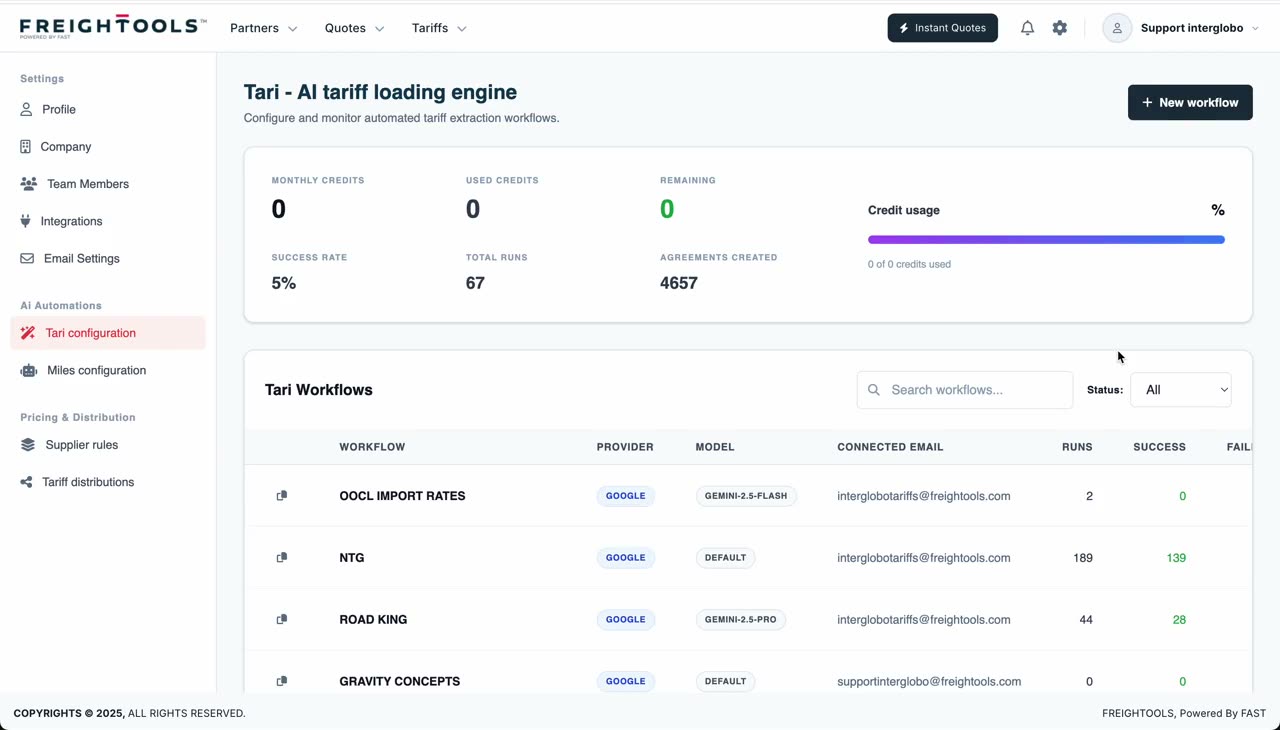
From the top-right avatar menu, click AI Automation Settings. Freightools opens the settings workspace with Tari Configuration selected.

User action
Open the avatar menu and select AI Automation Settings.
Result
The AI automation settings area opens with the left-side settings menu and Tari Configuration active.
Tip
All AI automation lives in the same workspace — Tari on top, Miles right below it in the left menu.
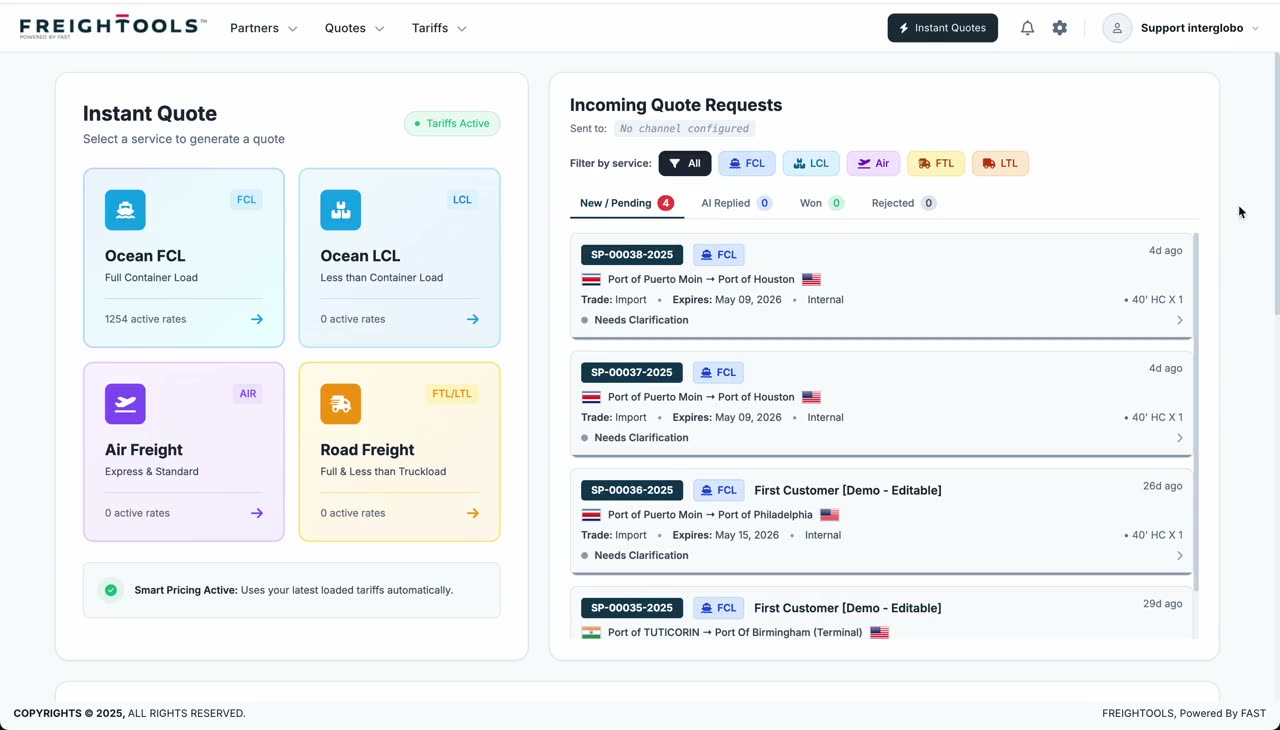
Silent clip · Opening AI Automation Settings from the avatar menu
Silent clip · Tari dashboard with active tariff loading workflows
Step 02

Understand Tari Configuration

Tari Configuration controls AI tariff loading services. A Tari service tells Freightools which incoming supplier email or file belongs to which AI tariff loading workflow.

User action
Open an existing Tari configuration or create a new one.
Result
The Tari service configuration form opens.
Step 03

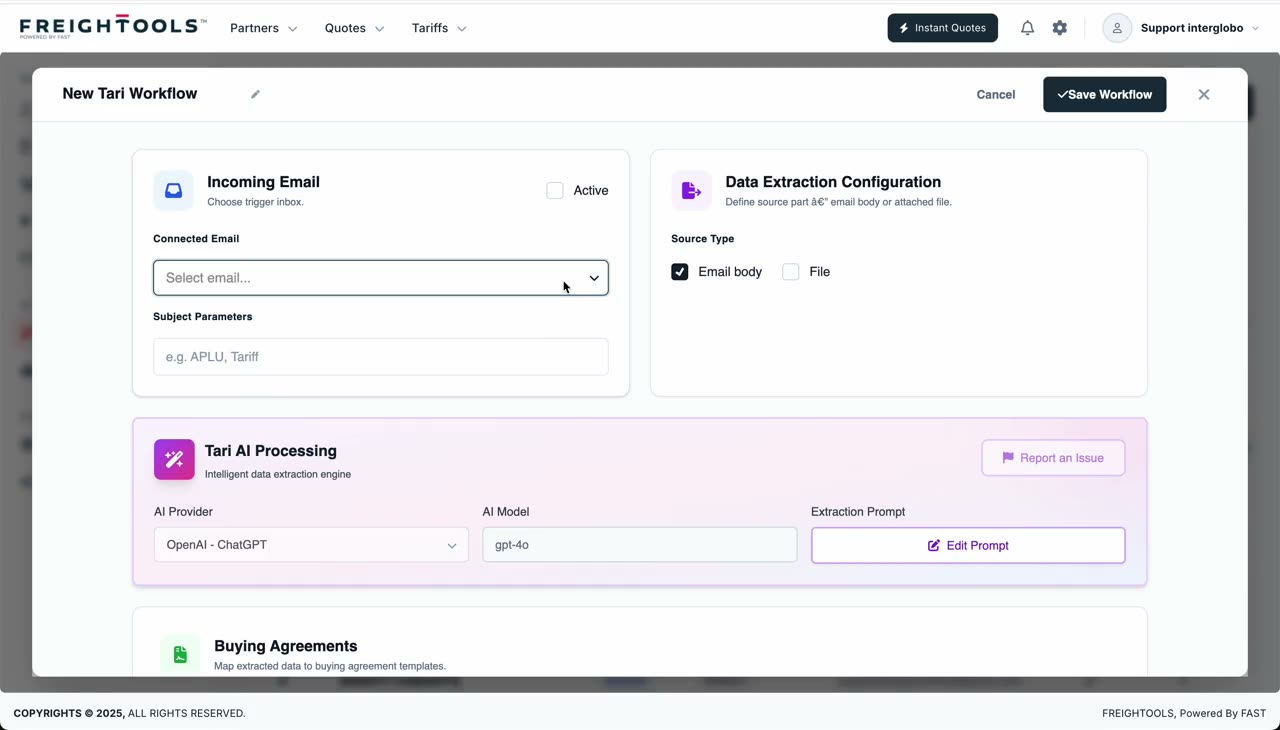
Choose the incoming email channel

Select the company email channel that will receive supplier tariff emails. These channels come from the company email settings.

User action
Choose the relevant incoming email channel.
Result
Freightools knows which mailbox or channel the Tari service should monitor.
Tip
Use a dedicated tariffs@ mailbox per supplier group — it keeps subject matching simple.
Silent clip · Selecting the connected email channel for a Tari workflow
Silent clip · Adding subject parameters such as supplier names
Step 04

Define subject matching parameters

Subject parameters help Freightools identify the correct supplier or tariff email. For example, a supplier name such as MSC can help the system match the email to the correct AI service.

User action
Add the relevant subject keywords or supplier identifiers.
Result
Incoming emails are easier to classify and route to the correct Tari configuration.
Step 05

Choose the source type

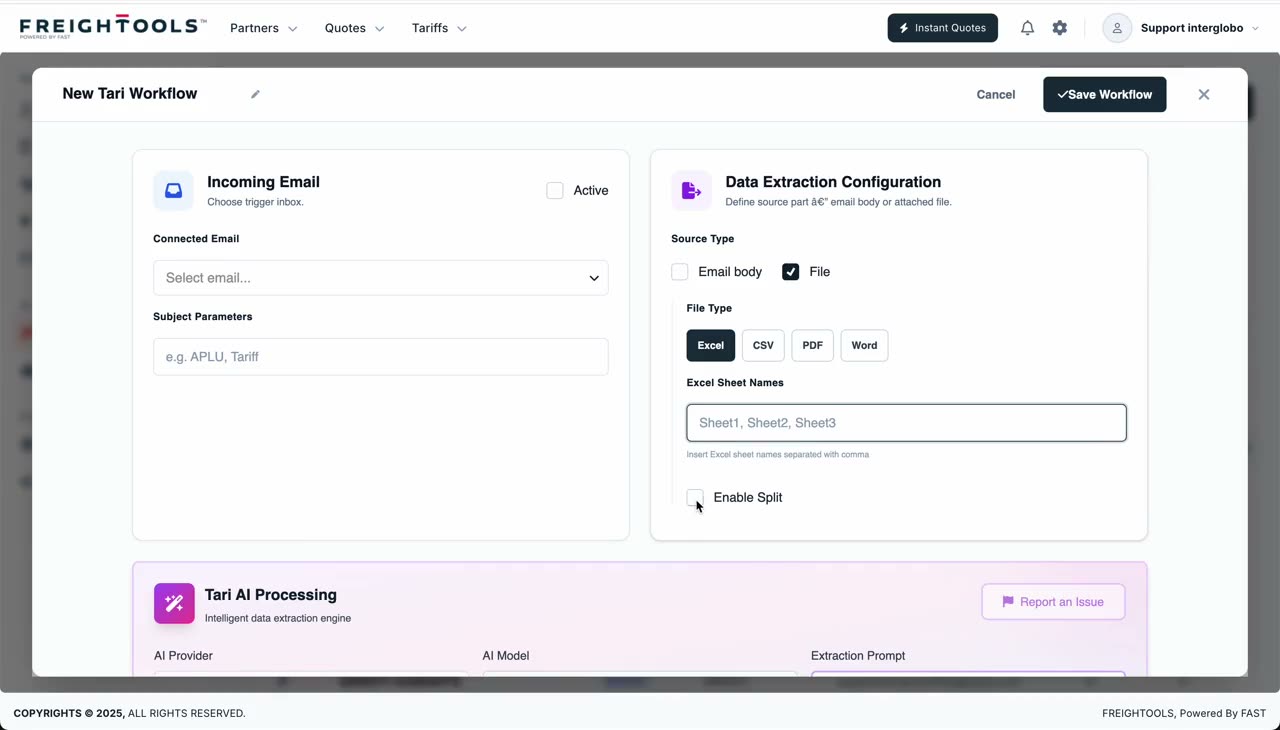
Select whether the tariff data should be read from the email body or from an attached file. If the source is file-based, supported file types include Excel, CSV, PDF, and Word document.

User action
Choose Email Body or File, then select the relevant file type where applicable.
Result
Freightools knows where Tari should read the tariff data from.
Silent clip · Selecting source type and file type for Tari
Silent clip · Specifying Excel sheets and splitting rules
Step 06

Configure Excel intake

For Excel files, the user can specify which sheets should be processed, or leave the sheet field blank to process all sheets.

User action
Enter specific sheet names if needed, or leave the field blank for all sheets.
Result
Tari processes the correct Excel sheet scope.
Tip
Leave the sheet field blank when the supplier rotates sheet names — Tari will process all of them.
Step 07

Configure splitting rules

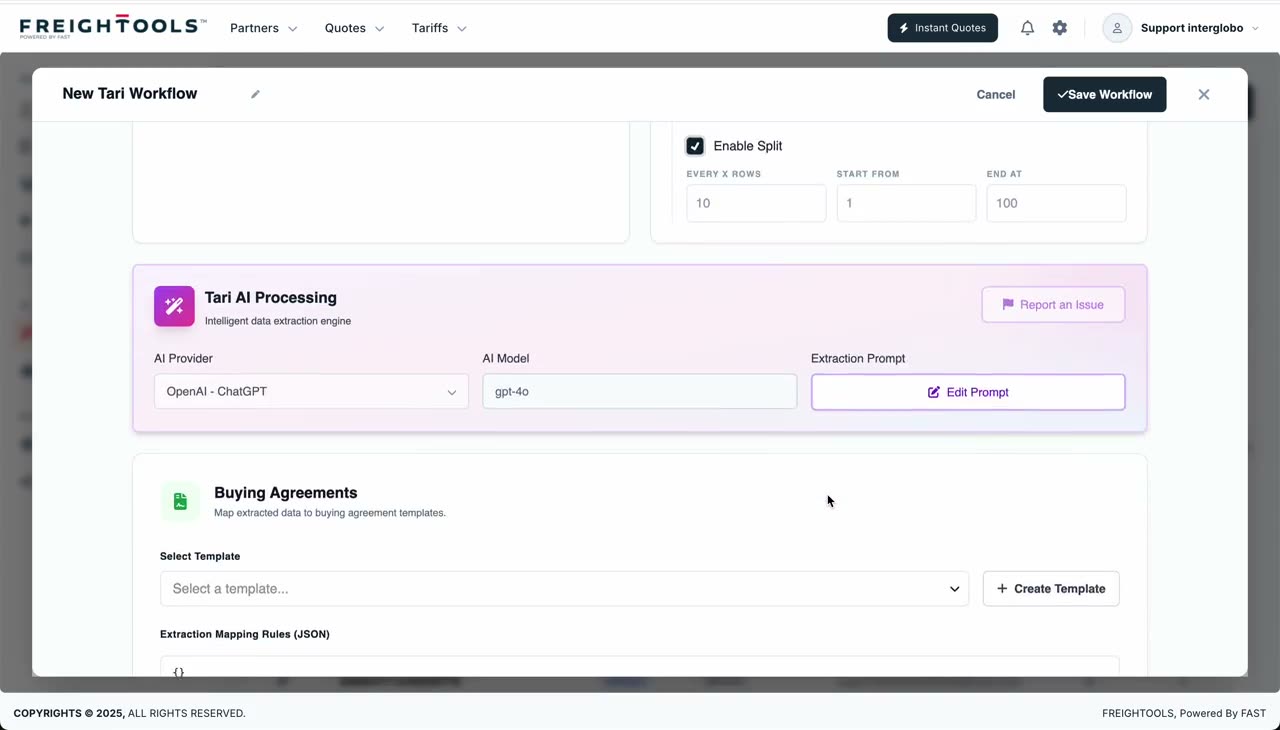
Splitting controls how large files are divided before AI processing. Excel files can be split by rows. PDF and Word files are split by pages. For Excel row splitting, the user can define every how many rows to split, the start row, and the end row.

User action
Enable splitting only when needed and configure the row or page range.
Result
Large files can be processed in smaller parts.
Tip
Only enable splitting when a file is too large to process in one pass.
Silent clip · Configuring split rules: rows per chunk, start row, end row
Silent clip · Choosing AI provider, model, and editing the Tari prompt
Step 08

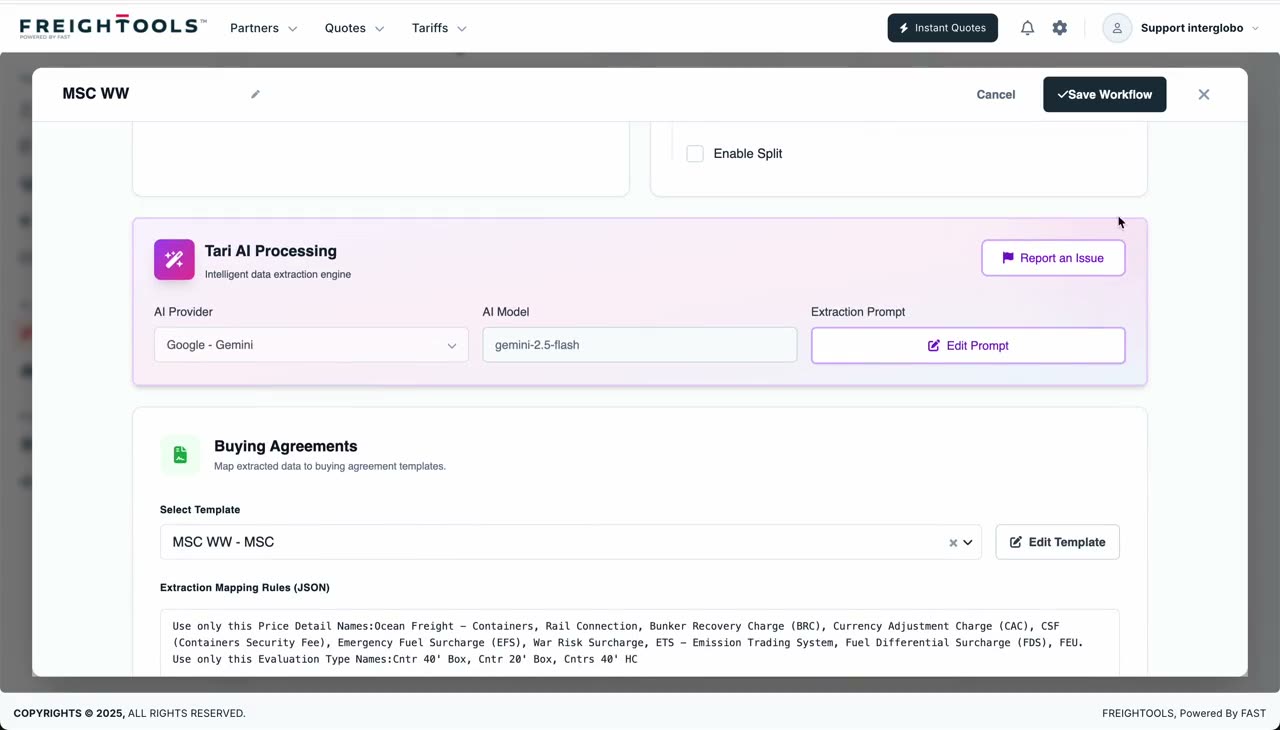
Configure Tari AI processing

After intake, Tari sends the content to AI processing. The user can choose AI provider, AI model, and prompt. The prompt defines how Tari should read the supplier tariff and return structured data.

User action
Select the AI provider and model, then review or edit the prompt.
Result
Tari knows how to process the tariff content.
Step 09

Report a target configuration issue

If the target configuration does not look correct, the user can report an issue directly from the AI processing area.

User action
Use the report issue action when the target configuration requires review.
Result
The configuration issue can be flagged for correction.
Silent clip · Report Issue action available from the AI processing card
Silent clip · Picking a Buying Agreement template as the extraction target
Step 10

Choose the Buying Agreement template

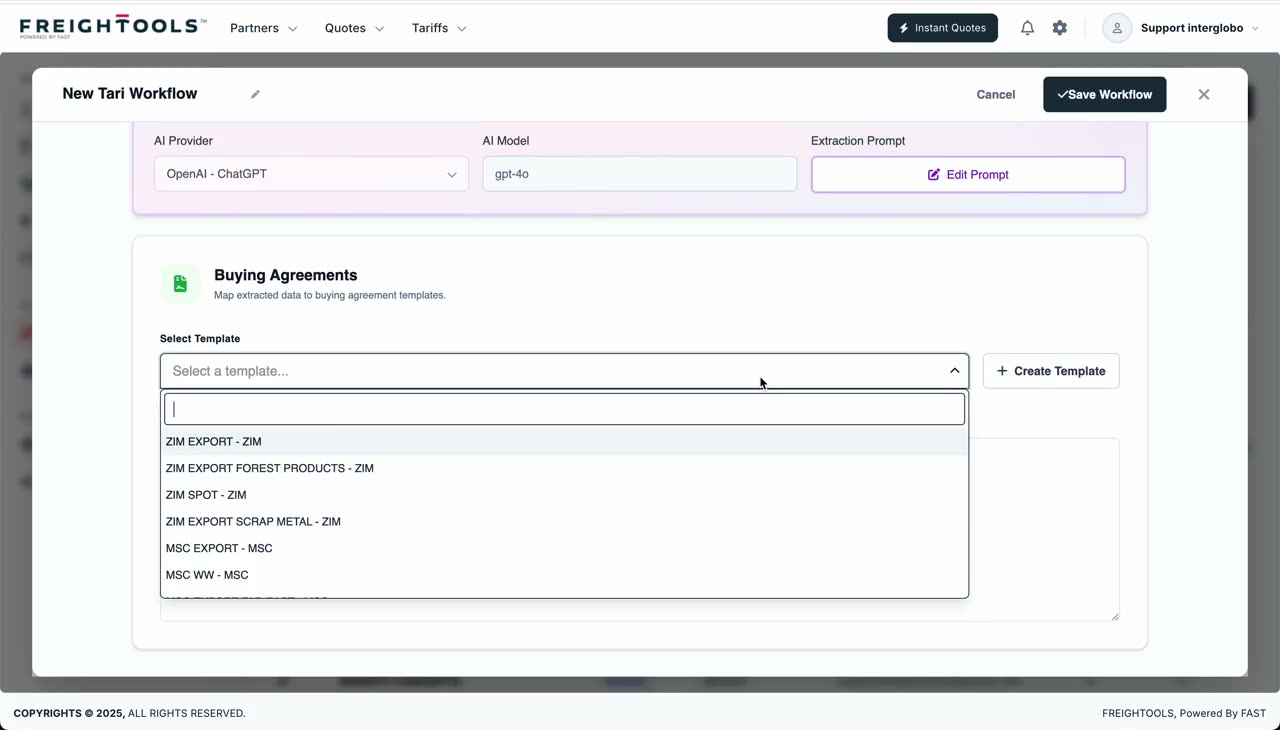
The Buying Agreement template defines the target structure that Tari should create. The selected template must include all relevant price details and evaluation types that the AI can use.

User action
Choose the correct buying agreement template for the supplier tariff.
Result
Tari has the right target agreement structure for the extracted tariff.
Tip
If a template is missing fields, create or edit it first — the extraction is only as rich as the template.
Step 11

Review extraction mapping

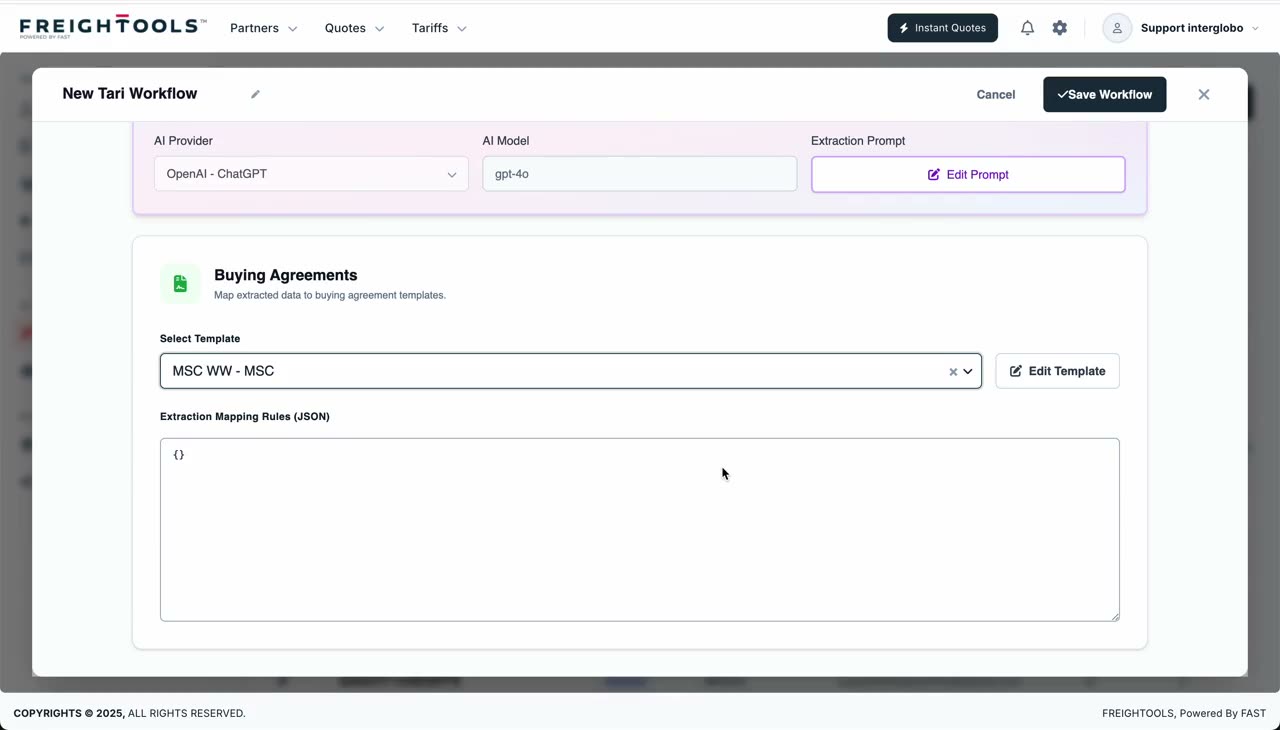
After the Buying Agreement template is selected, the extraction mapping route / JSON is filled automatically according to the selected target configuration.

User action
Review the generated extraction mapping.
Result
The extracted data is mapped into the correct Freightools buying agreement structure.
Silent clip · Auto-generated extraction mapping JSON for the selected template
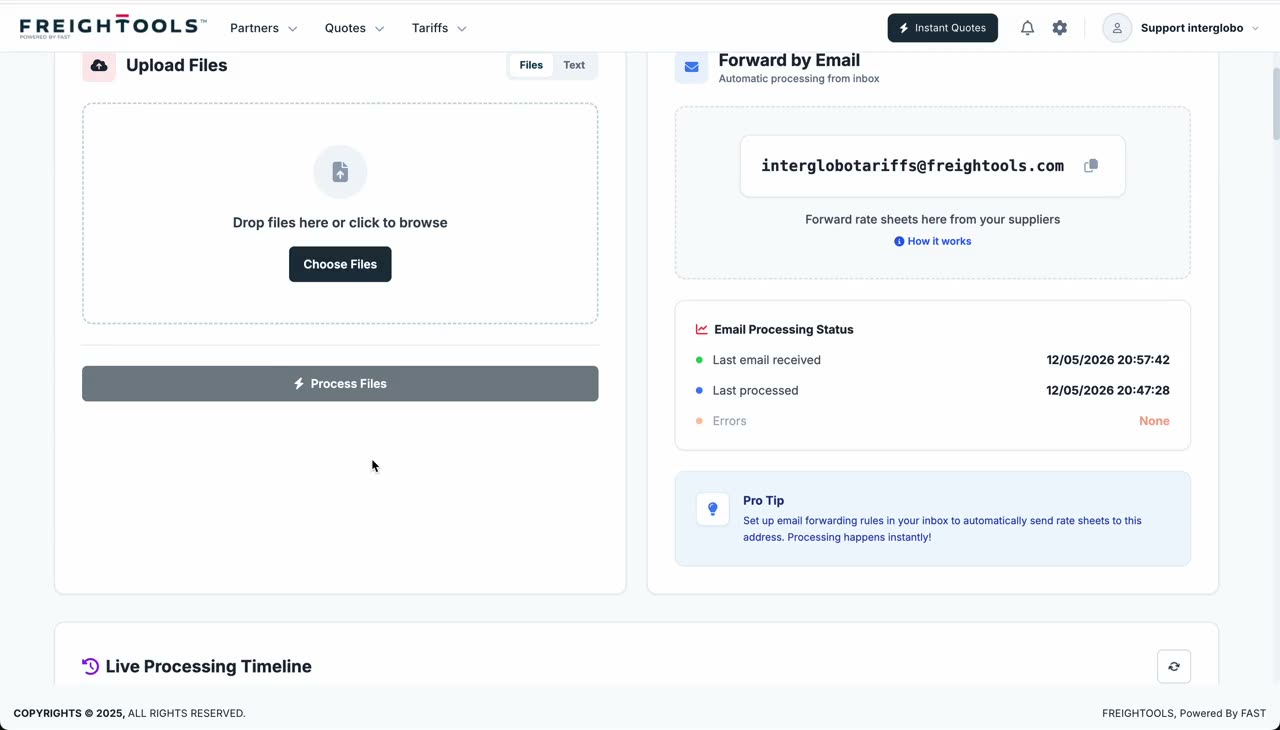
Silent clip · AI Tariff Loading test page with upload and email-forwarding intake
Step 12

Test Tari from AI Tariff Loading

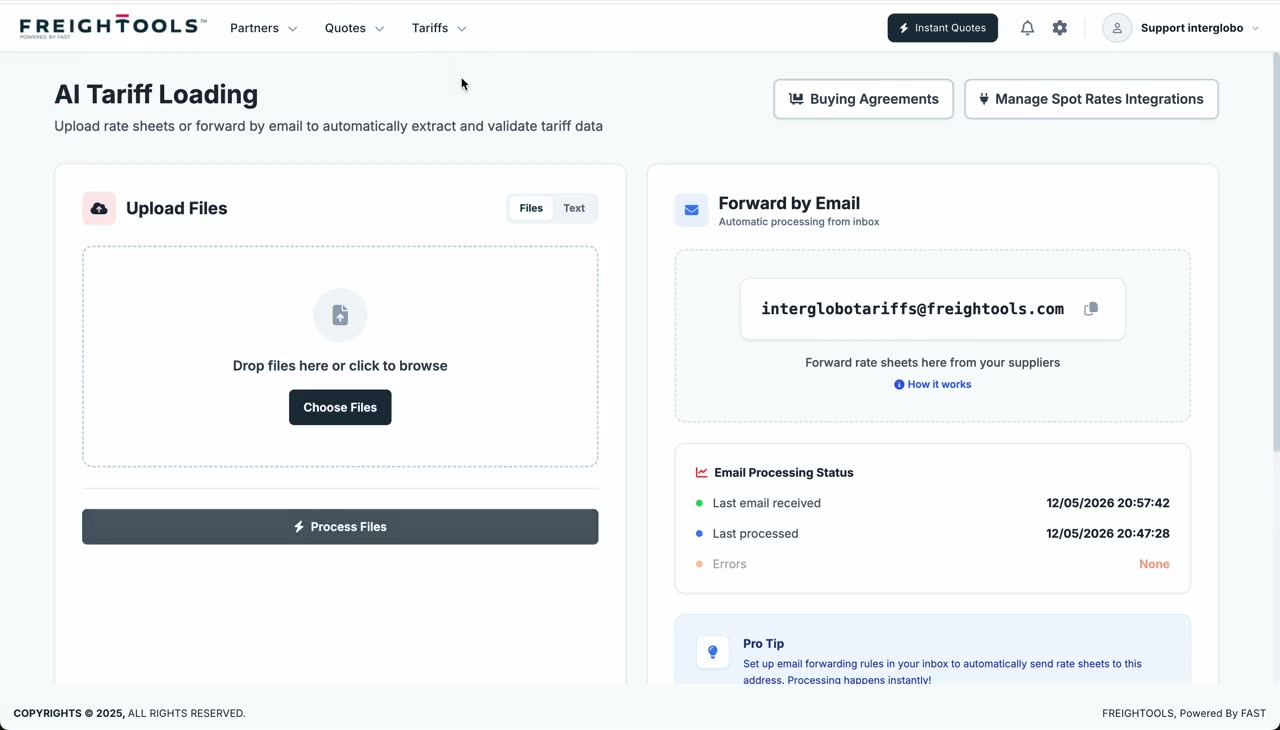
To test the service, open the top menu, go to Tariffs, then select AI Tariff Loading.

User action
Open Tariffs > AI Tariff Loading.
Result
The AI tariff loading test page opens.
Step 13

Upload or paste tariff data for testing

The user can paste email text or upload a file from the computer, then choose the Tari service to process the content.

User action
Paste text or upload a file, select the service, and process the file.
Result
Freightools starts processing the tariff using the selected AI service.
Tip
Test against a real supplier file before going live — it surfaces template gaps fast.
Silent clip · Uploading a file, selecting the Tari service, and processing
Silent clip · Live Processing Timeline showing pipeline progress stages
Step 14

Review the live processing timeline

The AI Tariff Loading page shows a live processing timeline, including file loading and processing progress.

User action
Watch the processing timeline after submitting the test.
Result
The user can follow the loading and processing status.
Step 15

Understand Miles Configuration

Miles Configuration controls AI quote automation. Miles reads customer quote request emails and attempts to identify the request — including addresses, cargo, shipment mode, and other quote details.

User action
Open Miles Configuration from the left-side settings menu.
Result
The Miles configuration area opens.
Silent clip · Miles dashboard with active quote-automation workflows
Silent clip · Starting a new Miles workflow from the Miles dashboard
Step 16

Create a new Miles configuration

A Miles configuration defines how a quote-request email should be read, validated, priced, and replied to.

User action
Click New Miles Configuration.
Result
A new Miles configuration form opens.
Step 17

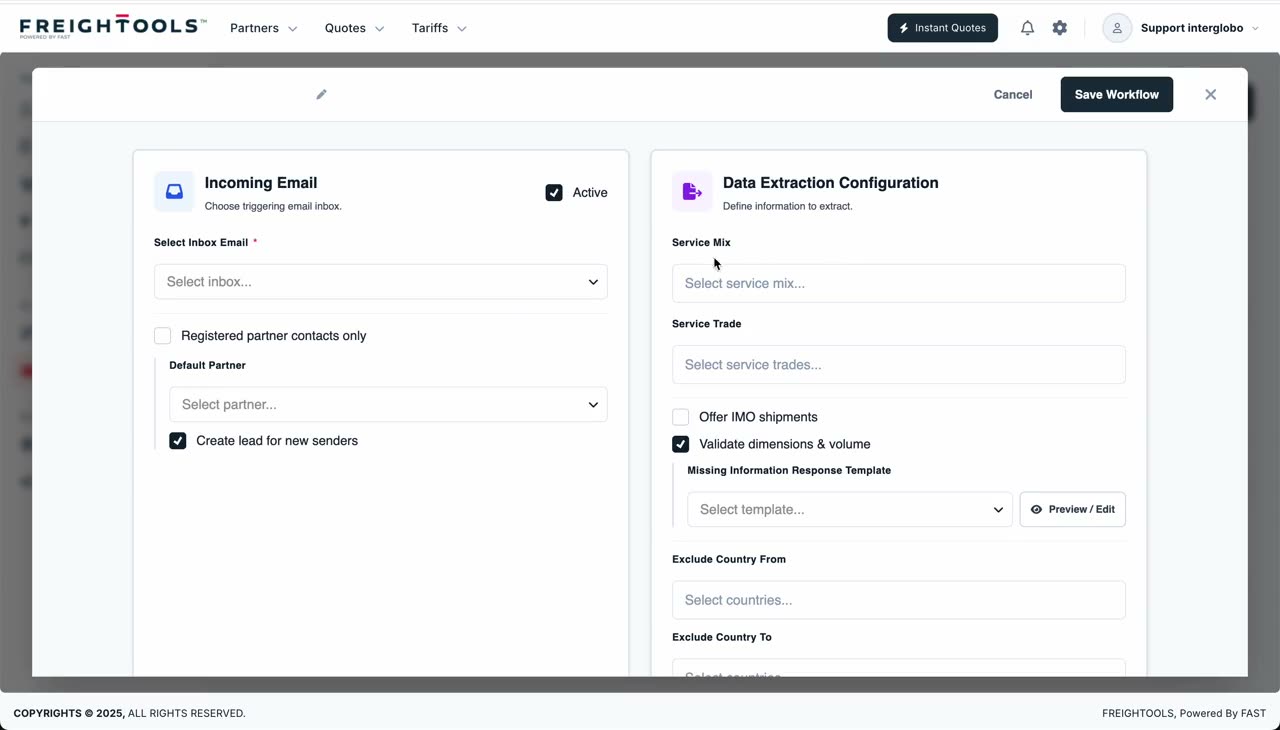
Choose the Miles email source

Choose the incoming email source that Miles should monitor for customer quote requests.

User action
Select the relevant company email channel.
Result
Miles knows where customer quote requests will arrive.
Silent clip · Selecting the inbox source for a Miles workflow
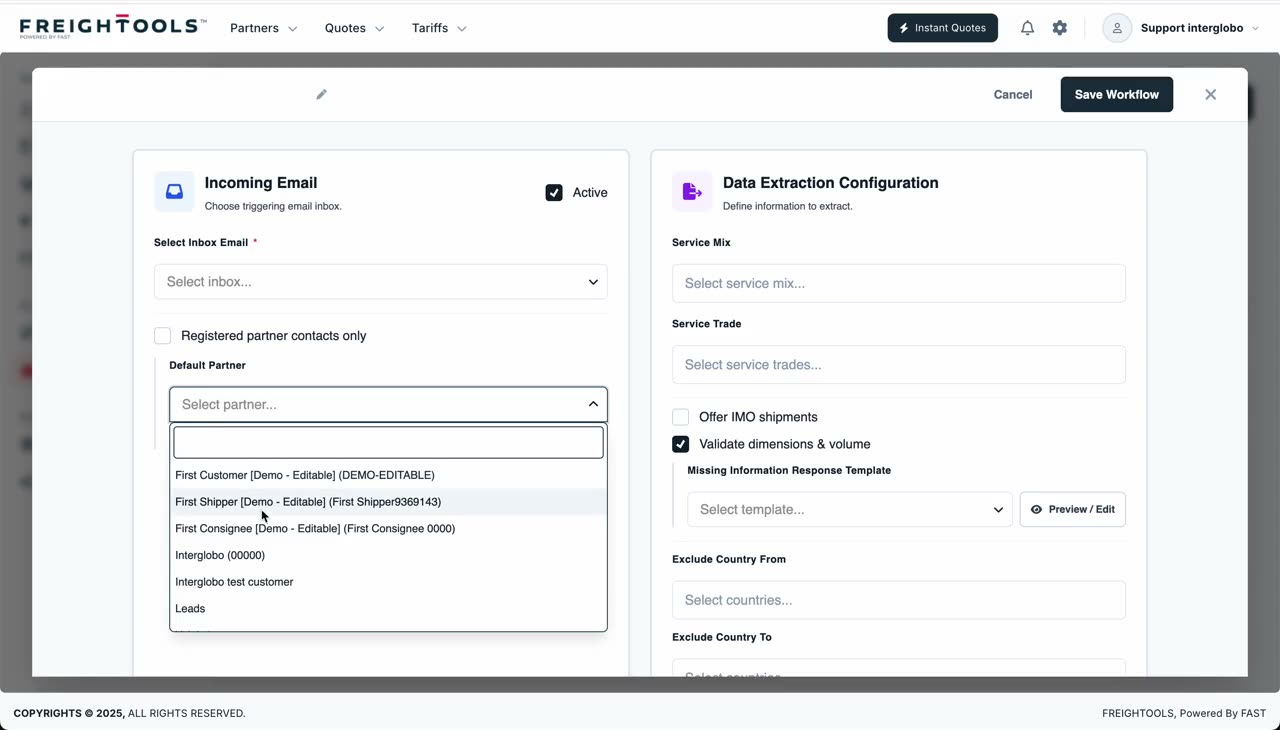
Silent clip · Registered-partners-only vs default partner for unregistered senders
Step 18

Configure registered partner validation

Miles can be configured to reply only to registered partner contacts. When enabled, Miles should only quote customers found in the registered partner / contact database, and the user should choose the email template used for unregistered partners. When left unchecked, the user must choose a default partner — used when quoting unregistered customers — which can carry the default selling agreement or margin rules for unregistered customers.

User action
Choose whether Miles should quote only registered partners or use a default partner for unregistered customers.
Result
Miles knows how to handle quote requests from unknown or unregistered senders.
Tip
Start strict with registered-partners-only, then relax to a default partner once you trust the flow.
Step 19

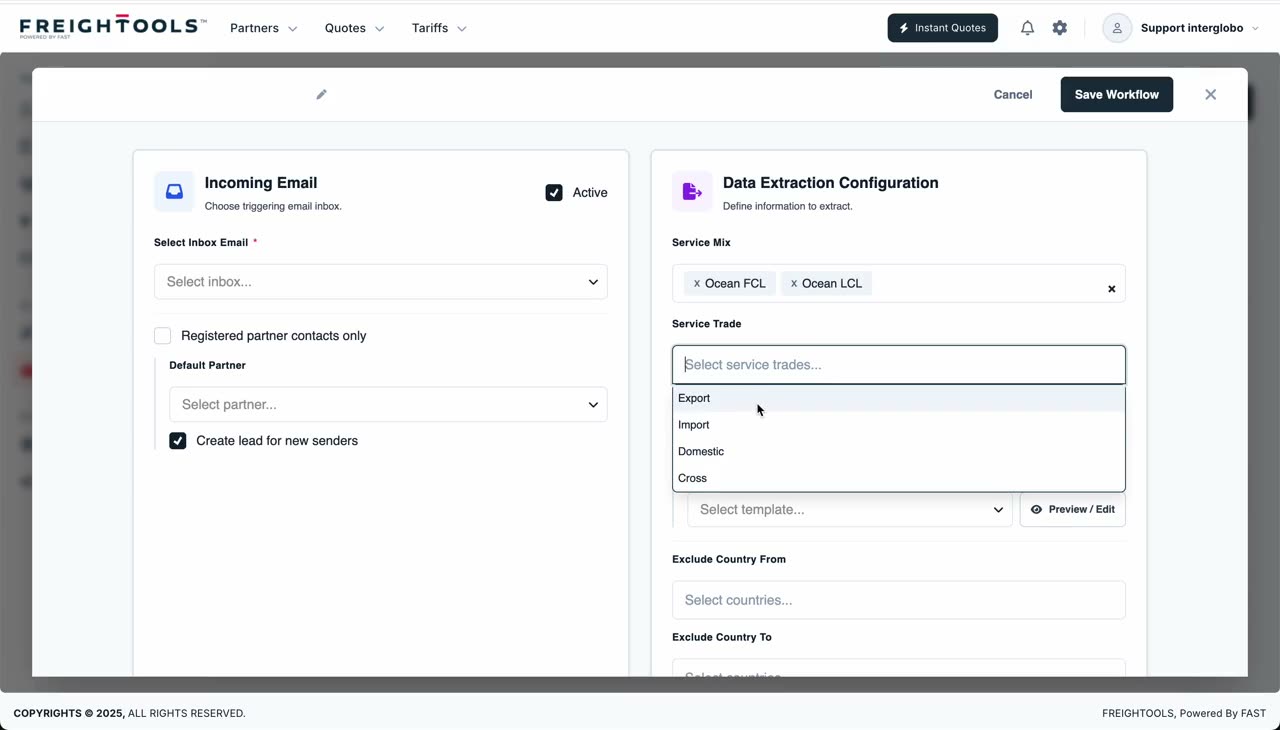
Configure service mix and trade scope

Data extraction configuration defines which shipment requests this Miles service should handle. The user can choose service mix — FCL, LCL, air, road, or other available service types — and service trade — import, export, domestic, cross trade, or all. Both fields are multi-select.

User action
Select the service mix and service trade values relevant to this Miles configuration.
Result
Miles only handles the intended quote-request scope.
Silent clip · Selecting service mix (FCL, LCL) and trade scope (Import, Export)
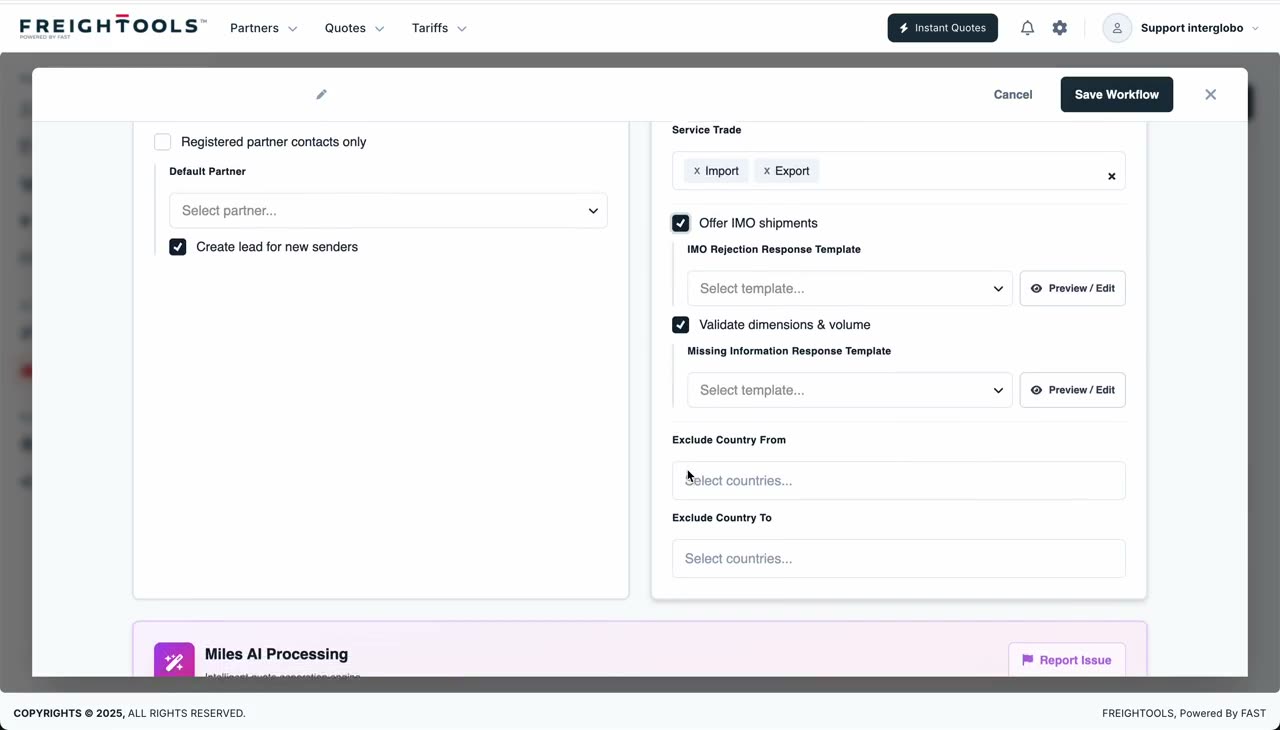
Silent clip · IMO handling, dimension validation, and country exclusions
Step 20

Configure IMO handling

The company can decide whether Miles should offer IMO / hazardous cargo shipments. If IMO should not be offered, the user must choose the email template used to reply when an IMO request is received.

User action
Choose whether IMO shipments are allowed and select the relevant reply template if they are not.
Result
Miles knows how to handle hazardous cargo requests.
Step 21

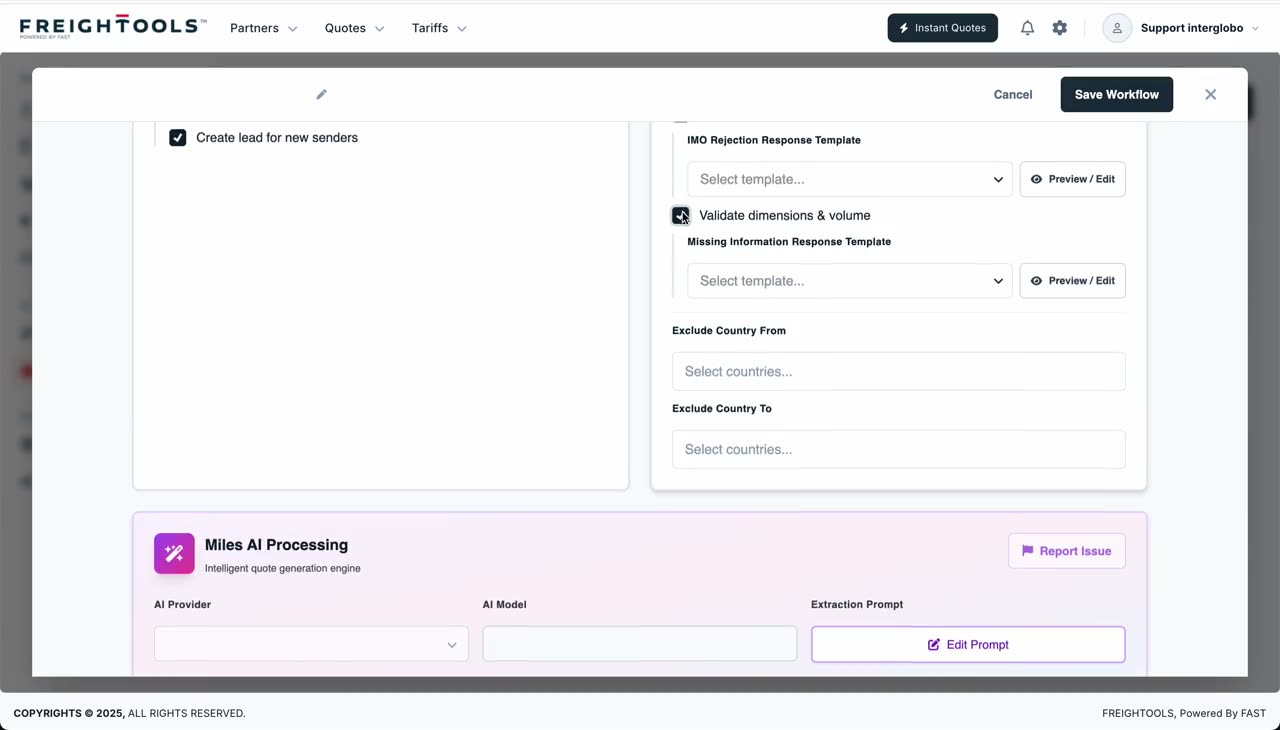
Configure dimension and volume validation

For LCL, LTL, and air shipments, dimensions and volume are often required. Miles can validate whether the customer provided the required dimensions and volume. If the information is missing, the user should choose the email template used to request the missing details.

User action
Enable validation if required and choose the missing-dimensions reply template.
Result
Miles can request missing cargo details before quoting.
Silent clip · Validating dimensions and volume for LCL, LTL, and air
Silent clip · Excluding origin and destination countries from Miles
Step 22

Configure excluded countries

If the company does not offer service to or from specific countries, those countries can be excluded from the Miles service.

User action
Select excluded countries where applicable.
Result
Miles does not offer quotes for excluded country scopes.
Step 23

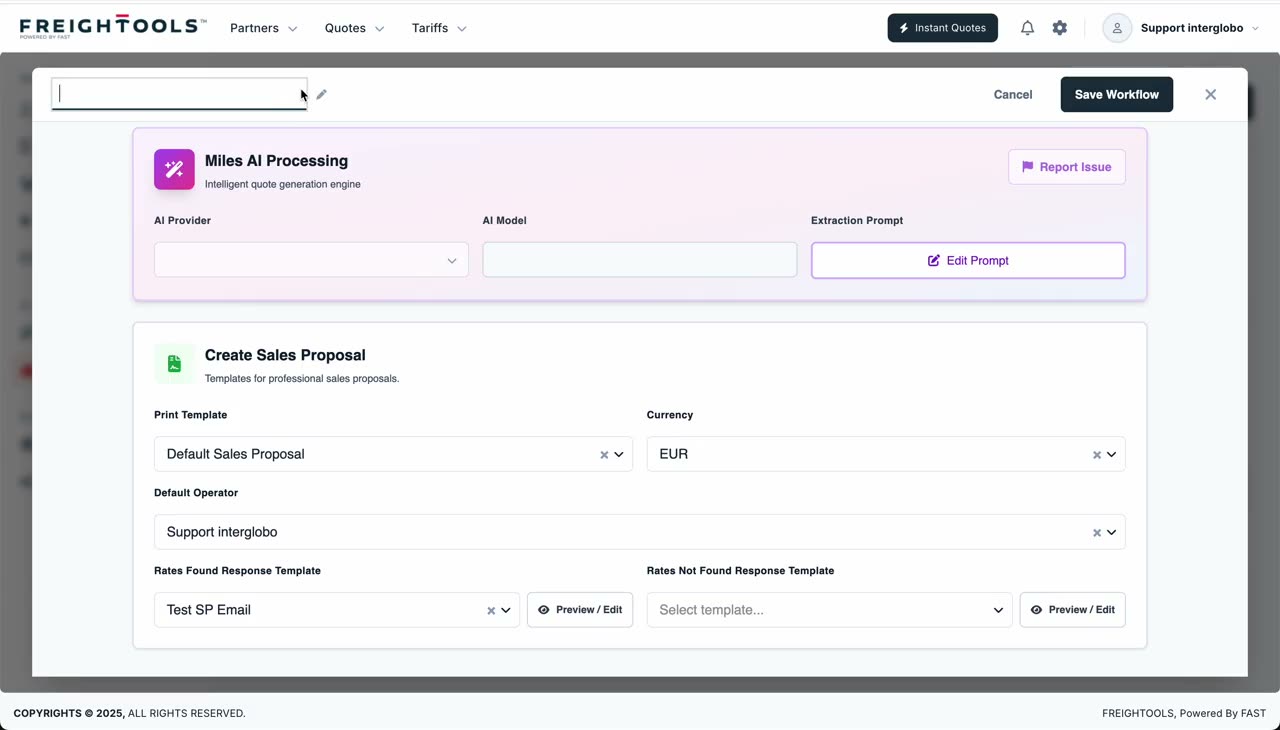
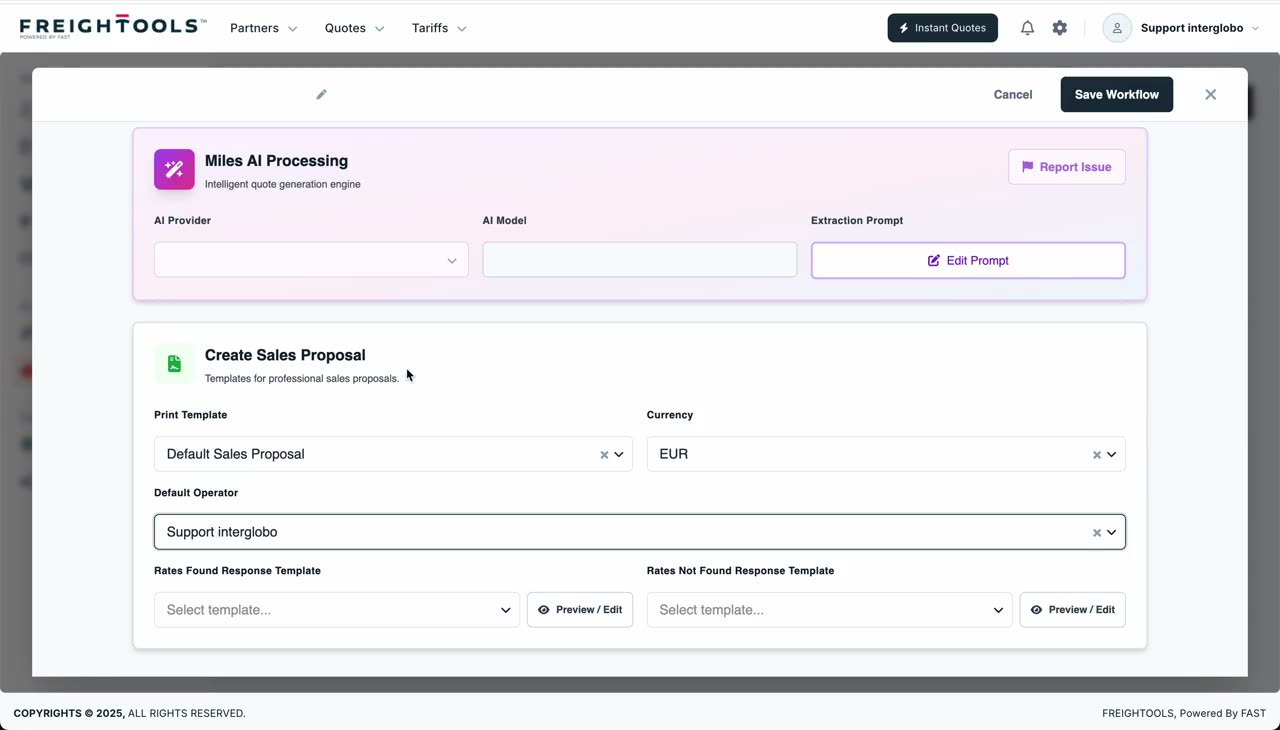
Configure Miles AI processing

Miles also has AI processing settings. The user can choose AI provider, AI model, and prompt. The Miles prompt controls how quote-request emails are read and interpreted.

User action
Select the AI provider and model, then review or edit the prompt.
Result
Miles knows how to extract quote-request details from customer emails.
Silent clip · Choosing AI provider, model, and editing the Miles prompt
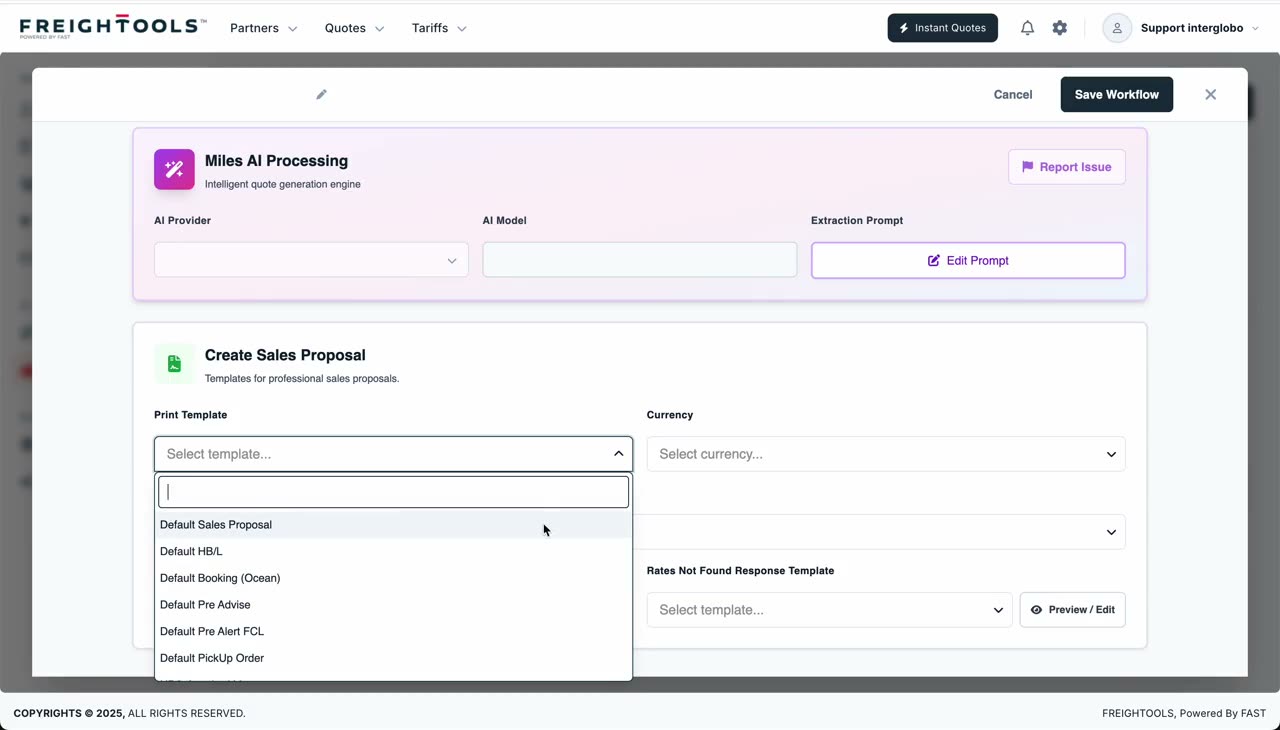
Silent clip · Setting printout template, currency, and operator for sales proposals
Step 24

Configure sales proposal creation

If Miles successfully reads the email and finds the request details, it can create a sales proposal. The company should configure sales proposal currency, printout template, operator in charge, and any other quote creation defaults shown in the UI.

User action
Configure the sales proposal creation settings.
Result
Miles can create a quote / sales proposal with the correct defaults.
Tip
Match the printout template to the company brand — every Miles-generated quote uses it.
Step 25

Configure reply templates

Miles needs templates for different outcomes. At minimum, configure rate-found template, rate-not-found template, unregistered-partner template (if registered-partners-only is enabled), missing-dimensions template (if dimension validation is enabled), and IMO-not-accepted template (if IMO is not offered).

User action
Select the relevant email templates for each outcome.
Result
Miles can generate the correct customer response depending on the result.
Silent clip · Configuring rate-found and rate-not-found reply templates
Step 26

Final check: Tari vs Miles

Tari loads supplier tariffs into Freightools as buying agreements. Miles reads customer quote requests and creates / replies with quotes using the pricing available in Freightools.

User action
Return to the onboarding hub or continue to another AI guide.
Result
The user understands the difference between tariff-loading automation and quote-reply automation.

Before sending the quote

Final review

  • Correct email channel selected for each Tari service

  • Subject matching parameters added where relevant

  • Source type selected correctly

  • File type selected correctly

  • Excel sheets configured or intentionally left blank for all sheets

  • Splitting rules configured only where needed

  • AI provider selected

  • AI model selected

  • Prompt reviewed

  • Buying Agreement template selected

  • Template includes all required price details

  • Template includes all required evaluation types

  • Extraction mapping reviewed

  • Tari service tested from AI Tariff Loading

  • Live processing timeline reviewed

  • Miles email source selected

  • Registered partner handling configured

  • Default partner configured if quoting unregistered customers

  • Service mix selected

  • Service trade selected

  • IMO handling configured

  • Dimension and volume validation configured

  • Excluded countries configured where relevant

  • Sales proposal currency selected

  • Printout template selected

  • Operator in charge selected

  • Rate found template selected

  • Rate not found template selected

  • Missing information templates selected where required

Common questions

Quick answers to the most common quoting questions.

  • What is Tari?

    Tari is the Freightools AI tariff loading engine. It reads supplier tariff emails and files, processes them with AI, and creates structured buying agreements.

  • What is Miles?

    Miles is the Freightools AI quoting engine. It reads customer quote request emails, extracts the shipment request, searches available pricing, creates a sales proposal, and prepares the customer reply.

  • What is the difference between Tari and Miles?

    Tari loads supplier pricing into Freightools. Miles uses the available pricing to answer customer quote requests.

  • Can Tari read both email bodies and attachments?

    Yes. Tari can be configured to read tariff data from the email body or from supported files such as Excel, CSV, PDF, and Word documents.

  • When should I use file splitting?

    Use splitting when a file is too large or needs to be processed in smaller parts. Excel splitting is row-based. PDF and Word splitting are page-based.

  • Why is the Buying Agreement template important?

    The template defines the target structure for the extracted tariff, including the price details and evaluation types that Tari can create.

  • What happens if Miles receives a request from an unregistered customer?

    That depends on the configuration. Miles can either reply only to registered partner contacts using an unregistered-partner template, or use a configured default partner for unregistered customers.

  • Why do I need reply templates for Miles?

    Miles uses reply templates for different outcomes, such as rate found, rate not found, unregistered partner, missing dimensions, or IMO not accepted.

  • Can I choose which AI provider is used?

    Yes. Tari and Miles configurations can include the AI provider, model, and prompt used for processing.

  • Where do I test Tari?

    Use Tariffs > AI Tariff Loading to paste email text, upload a file, select a service, and process the file.

Ready to create your first quote?

Use this guide as your first workflow. Once your team is comfortable with Instant Quote, you can continue with settings, spot rates, AI tariff loading, and quote templates.